Chat Bot Adam - User Guide
This is a user manual for Chat Bot Adam, a task-management desktop application designed to be used with a Command Line Interface (CLI).
If you can type fast, Adam can get your tasks managed faster than some GUI apps.
View the User Guide in Simple Theme
Table of Contents
Introduction
Adam the Chat Bot is a versatile task management application designed to simplify your daily workflow.
Whether you’re organizing personal tasks, planning projects, or managing deadlines, Adam is here to help.
With its intuitive Command Line Interface (CLI), Adam offers a seamless and efficient task management experience.
This user guide provides a comprehensive overview of Adam’s features and commands, as well as a quick start guide to get you up and running in no time.
Quick Start
- Ensure you have
Java 11or above installed in your Computer. - Download the latest
adam.jarfrom here - Copy the file to the folder you want to use as the home folder for Adam the Chat Bot.
- Start a terminal and navigate to the folder where
adam.jaris located. - Run the command
java -jar adam.jarto start the app. The app should start with the following output displayed: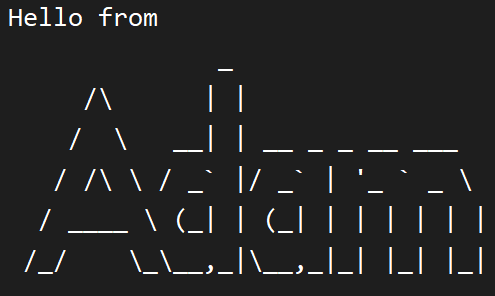
- Type the command in the command box and press Enter to execute it. Refer to the Features section for available commands.
- Note that the data is saved in the hard disk automatically after any command that changes the data. There is no need to save manually.
- Please take note that deleting the
tasks.datfile will result in the loss of all data. - Please do not edit the
tasks.datfile manually as it may result in the loss of all data. - Please ensure that the data file named
tasks.datis in the same directory as theadam.jarfile to load the saved data.
If there is notasks.datfile in the same directory as theadam.jarfile, an emptytasks.datfile will be created to store the data.
[!NOTE]
- All the spaces in the commands are for clarity and are optional to include in the actual command.
- Commands are case-insensitive.
- The
<angle-brackets>are used to denote the parameters that should be replaced with the actual user input.
Features
Adding a task
Adds a task to the list of tasks. The task can be a todo, deadline, or event task.
The task descriptions are case-sensitive and are displayed as entered.
Usage
todo <description>
Adds a todo task with the given description.
deadline <description> /by <date and/or time>
Adds a deadline task with the given description and date.
event <description> /from <start date and/or time> /to <end date and/or time>
Adds an event task with the given description and start and end dates.
- The date and time format is specified in the Appendix.
Example of usage
todo read book
Adds a todo task with the description “read book”.
deadline return book /by 2024-03-30 1600
Adds a deadline task with the description “return book” and the date “2024-03-30”.
event project meeting /from 2024-03-07 100 /to 2024-03-07 230
Adds an event task with the description “project meeting”
with the start date and time Mar 7, 2024, 1:00 PM and the end date Mar 7, 2024, 2:30 PM.
[!NOTE]
- The time field is optional and defaults to 12:00 AM if not specified.
- Unspecified dates are automatically set to the current date from the system clock.
- Using unsupported date and time formats will create a tasks with the date and time as the literal input.
- For example:
deadline Hand in assignments /by tomorrow afternoon
Adds a deadline task with the description “Hand in assignments” and the date and time as a literal “tomorrow afternoon”.
Expected outcome
Awesome sauce! Task successfully added:
  [T][ ] read book
You now have a whopping 1 tasks in the list. Keep 'em coming!
Awesome sauce! Task successfully added:
  [D][ ] return book (by: Mar 30, 2024, 4:00 PM)
You now have a whopping 2 tasks in the list. Keep 'em coming!
Awesome sauce! Task successfully added:
  [E][ ] project meeting (from: Mar 7, 2024, 1:00 PM to: Mar 7, 2024, 2:30 PM)
You now have a whopping 3 tasks in the list. Keep 'em coming!
Listing all tasks
Lists all the tasks in the list of tasks.
Usage
listorls- Lists all the tasks in the list of tasks.
Example of usage
list - Display all the tasks in the list of tasks.
Expected outcome
Behold, the mighty task(s) in your realm:

1. [T][ ] read book
2. [D][X] return book (by: Mar 30, 2024, 4:00 PM)
3. [E][X] project meeting (from: Mar 7, 2024, 2:30 PM to: Mar 7, 2024, 2:30 PM)

These tasks await your valiant efforts, noble taskmaster!
Marking a task as done
Marks a task as done in the list of tasks.
Usage
mark <index>- Marks the task at the given index as done.
unmark <index>- Marks the task at the given index as not done.
Example of usage
mark 1 - Marks the 1st task in the list as done.
unmark 2 - Marks the 2nd task in the list as not done.
Expected outcome
Ta-da! Task conquered! I've marked this task as done:
   [T][X] read book
Whoopsie-daisy! This task is back in action:
   [D][ ] return book (by: Mar 30, 2024, 4:00 PM)
Deleting a task
Deletes a task from the list of tasks.
Usage
delete <index>- Deletes the task at the given index from the list of tasks.
Example of usage
delete 3 - Deletes the 3rd task from the list of tasks.
Expected outcome
Task gone with the digital wind!
  [E][ ] project meeting (from: Mar 7, 2024, 1:00 PM to: Mar 7, 2024, 2:30 PM)
Now down to 1 tasks in the list.
Finding a task by keyword
Finds a task from the list of tasks that contains the given keyword.
Usage
find <keyword>- Finds a task from the list of tasks that contains the given keyword.
Example of usage
find book - Finds a task from the list of tasks that contains the keyword “book”.
Expected outcome
Behold! Your tasks surface:
1.[T][X] read book
2.[D][ ] return book (by: Mar 30, 2024, 4:00 PM)
Exiting the program
Exits the program.
Usage
byeorexorq- Exits the program.
Example of usage
bye - Exits the program.
Expected outcome
Farewell, adventurer! Until our paths cross again!
Viewing help
Displays the help message.
Usage
helporh- Displays the help message.
Example of usage
help - Displays the help message.
Expected outcome
Need a hand? Here's your guide to Adam's commands!

Available commands:
- bye (or ex, q): Exit the chatbot.
- todo [description]: Add a new todo task.
- deadline [description] /by [deadline]: Add a new task with a deadline.
- event [description] /from [start time] /to [end time]: Add a new event task.
- list (or ls): View all tasks in the task list.
- mark [task number]: Mark a task as completed.
- unmark [task number]: Mark a completed task as incomplete.
- delete [task number]: Delete a task from the list. (Watch out, it's permanent!)
- find [keyword]: Search for tasks containing the specified keyword.
- help (or h): Display this help menu.

To use a command, simply type it followed by any necessary parameters
(e.g. "deadline Hand in assignments /by 4th June").
Enjoy chatting with Adam!
Appendix
Date and Time Format
The date and time format is case-insensitive.
deadlineandeventcommands accept dates and times in the following format:
- Date:
YYYYMMDD(4-digit year, 2-digit month, 2-digit day,
seperated by any symbols of:-/.or a space character)DDMMYYYY(2-digit day, 2-digit month, 4-digit year,
seperated by any symbols of:-/.or a space character)ddMMMyyyy(2-digit day, 3-letter month, 4-digit year,
seperated by any symbols of:-/or a space character)MMMddyyyy(3-letter month, 2-digit day, 4-digit year,
seperated by a space character)MMM dd, yyyy(3-letter month, 2-digit day, 4-digit year,
seperated by a space character with a comma,after the day)- Time:
- 24-hour or 12-hour format with an optional leading zero,
and optional colon:as the separator between hours and minutes.- For 12-hour format, the time should be followed by
amorpm.
Format Examples
Date:
2024-03-3030/03/202430.03.202430 03 202430 Mar 2024MAR 30, 2024
Time:
01:00pm13:001:00PM01:001001300